Want to speed up your WordPress site? Start with your database. A cluttered database slows page loads, frustrates users, and hurts your search rankings. In fact, studies show up to 78% of database data can be unnecessary after just one year, leading to slower query times and higher server loads.
Here’s what you’ll learn:
- Why database optimization matters: Faster load times, better server performance, and improved SEO.
- Common causes of slow databases: Post revisions, spam comments, expired transients, and orphaned data.
- Simple fixes: Use plugins like WP-Optimize or WP-Sweep for quick cleanup.
- Advanced techniques: Optimize tables in phpMyAdmin, limit post revisions, and enable object caching with Redis.
Key takeaway: Regular maintenance – like cleaning unnecessary data and monitoring database size – can boost performance by up to 300%. Let’s explore how to keep your WordPress database lean and efficient.
Complete Guide on WordPress Database Optmizations
Diagnosing Database Performance Problems
Before diving into optimization, it’s critical to pinpoint the root of your database performance issues. Identifying these signs early can save you a lot of time and headaches.
Some common red flags include slow page loads, laggy admin interfaces, and transaction errors. If your pages take more than 3 seconds to load, your database might be struggling. More severe problems can manifest as errors when saving content, checkout timeouts on eCommerce sites, or backup processes that fail or take too long.
Keep an eye on your hosting dashboard for unusual CPU or memory spikes, which often point to inefficient database queries running in the background. For online stores, random checkout failures or delays in filtering products are clear signs your database needs attention.
What Causes Database Bloat
Database bloat happens when unnecessary data piles up over time, slowing down your system. A major contributor is post revisions. By default, WordPress saves a copy of every edit, which can result in thousands of redundant entries in the wp_posts table if updates are frequent. For instance, running this query in phpMyAdmin:
SELECT COUNT(*) FROM wp_posts WHERE post_type = 'revision'; can help you determine if revisions outnumber your published posts by more than threefold – a clear sign of trouble.
Another culprit is expired transients, which are temporary cached data stored in the wp_options table. These often fail to delete themselves, consuming space and slowing down queries. Similarly, orphaned metadata in tables like wp_postmeta, wp_commentmeta, or wp_usermeta – left behind after deleting posts or uninstalling plugins – can clutter your database. Poorly coded plugins are frequently responsible for this leftover data.
Spam comments and trashed content also take up space until they’re permanently removed. For WooCommerce users, Action Scheduler logs can accumulate thousands of records from failed or completed background tasks, further burdening your database. Lastly, autoloaded options in wp_options – data loaded on every page request – can become a bottleneck if they exceed 800 KB to 1 MB.
| Core Table | Primary Function | Common Bloat Source |
|---|---|---|
wp_options |
Site settings and plugin configurations | Expired transients and autoloaded data |
wp_posts |
Content (posts, pages, attachments) | Unlimited post revisions and auto-drafts |
wp_postmeta |
Metadata for posts and products | Orphaned data from deleted plugins/posts |
wp_comments |
User comments and metadata | Spam comments and trashed items |
wp_actionscheduler_actions |
Background task logs | Failed or completed background tasks |
Database Performance Tools
To identify slow queries, Query Monitor is a great starting point. This free plugin highlights which database queries are taking longer than expected and identifies the plugins or themes responsible. Once installed, you can use the admin toolbar to investigate any unusually slow queries.
For more detailed analysis, turn to phpMyAdmin, which is typically available through your hosting control panel. Use it to review table sizes and identify overhead – wasted space that can be reclaimed. For example, run this SQL query to measure your autoloaded data:
SELECT SUM(LENGTH(option_value)) AS autoload_size FROM wp_options WHERE autoload='yes'; If the result exceeds 1 MB (1,000,000 bytes), it’s time to act.
For advanced users, enabling the Slow Query Log on your server can help track queries that exceed a specific time threshold. Managed hosting providers often include built-in tools like Kinsta APM or New Relic, which offer real-time insights into slow queries and their impact on user experience.
| Metric | Tool/Method | Good | Warning | Critical |
|---|---|---|---|---|
wp_options Autoload Size |
SQL Query | < 500 KB | 500 KB – 1 MB | > 1 MB |
| Post Revisions | WP-Optimize / SQL | Hundreds | Thousands | > 10,000s |
| Database Table Overhead | phpMyAdmin | < 1 MB | 1 MB – 10 MB | > 10 MB |
| Total Database Size | Hosting Panel | < 100 MB | 100 MB – 500 MB | > 500 MB |
Once you’ve identified the issues, you’re ready to explore ways to optimize your database, from simple fixes to more advanced techniques.
Simple Database Optimization Methods
Keep your database clean without diving into coding or using phpMyAdmin.
Before making any changes, backup your site to avoid data loss. Use reliable tools like UpdraftPlus or Jetpack VaultPress to create a full backup of your site. This ensures you have a safety net in case anything goes wrong.
Using WordPress Settings to Clean Your Database
WordPress includes several built-in tools to help you tidy up your database right from the dashboard. Start by clearing out spam and trash:
- Navigate to Comments > Spam and click “Empty Spam” to delete all spam comments in one go.
- Head to Posts > Trash and click “Empty Trash” to permanently remove deleted posts and pages.
By default, WordPress keeps trashed items for 30 days. You can shorten this period to 7 days by adding the following line to your wp-config.php file:
define( 'EMPTY_TRASH_DAYS', 7 ); Another way to reduce clutter is by disabling pingbacks and trackbacks, which can unnecessarily bloat your comments table. Go to Settings > Discussion and uncheck “Allow link notifications from other blogs”. Additionally, for older posts prone to spam, you can configure comments to close automatically after a set number of days.
To limit the number of post revisions saved, add this line to your wp-config.php file:
define( 'WP_POST_REVISIONS', 3 ); This ensures only the last three versions of each post are retained, reducing database size. As WPBeginner highlights:
“Post revisions don’t impact database performance or page load times directly, but they can make your database backups unnecessarily large. Cleaning up or limiting revisions can significantly reduce the size of your backup files.” – WPBeginner
Lastly, remove unused plugins and themes. These often leave behind metadata in the wp_options table, which contributes to database bloat.
If you want a more hands-off approach, consider plugins that automate these tasks.
Database Optimization Plugins
For those who prefer automation, several plugins can simplify database optimization.
WP-Optimize is a comprehensive tool that handles database cleaning, image compression, and page caching. After installing and activating the plugin, go to WP-Optimize > Database. Select tasks like cleaning post revisions, removing spam comments, or optimizing database tables, and click “Run all selected optimizations”. You can also schedule automatic cleanups – daily, weekly, or monthly – to prevent future buildup.
If safety is a priority, try WP-Sweep. Unlike other plugins that rely on direct SQL queries, WP-Sweep uses WordPress’ native delete functions, minimizing the risk of leaving behind orphaned data. It’s free and lightweight, making it a great no-frills option.
For deeper optimization, consider Advanced Database Cleaner. This plugin is particularly effective at removing orphaned tables and options left by deleted plugins. The free version covers basic cleanup, while the Pro version (starting at $39) offers advanced features like multi-site support and granular controls.
Here’s a real-world example: A high-traffic blog with over 50,000 monthly visitors reduced its database size by 61% using WP-Optimize. In December 2025, the site cleaned a 2.3 GB database containing 180,000 post revisions and 45,000 spam comments, shrinking it to 890 MB. As a result, page load times dropped from 4.2 seconds to 1.8 seconds, and server CPU usage fell by 35%.
Rob Pugh from Automattic emphasizes the importance of regular maintenance:
“A bloated database can slow down your website’s loading times, which can hurt your SEO rankings and frustrate visitors.” – Rob Pugh, Automattic
| Plugin | Best For | Key Feature | Price |
|---|---|---|---|
| WP-Optimize | Beginners | Database cleaning, image compression, caching | Free; Premium available |
| WP-Sweep | Safety-conscious users | Uses native WordPress delete functions | Free |
| Advanced Database Cleaner | Removing old plugin data | Identifies orphaned tables and options | Free; Pro starts at $39 |
For standard blogs, a monthly cleanup schedule works well. High-traffic sites, like e-commerce platforms, may benefit from weekly cleanups. Many plugins offer automated scheduling, so you can set it up once and let it handle the rest.
These steps will help keep your database streamlined and your site running efficiently.
sbb-itb-f80d703
Advanced Database Optimization Techniques
After handling the basics, it’s time to dive into more advanced methods that give you precise control over how your database performs.
Manual Optimization Using phpMyAdmin
phpMyAdmin is a user-friendly, web-based tool for managing MySQL databases. You’ll usually find it in your hosting control panel, like cPanel or a managed hosting dashboard. Before making any changes, always back up your database to avoid potential data loss.
Once inside phpMyAdmin, select your WordPress database from the left sidebar. To optimize all tables, check the box at the top to select them, then choose “Optimize table” from the dropdown menu. This process defragments your database tables and reclaims unused space. If you encounter corrupted tables (often due to unexpected server shutdowns), use the “Repair table” option instead.
For more specific tasks, you can execute SQL queries directly. Here are some handy examples:
| Task | SQL Query |
|---|---|
| Delete Post Revisions | DELETE FROM wp_posts WHERE post_type = 'revision'; |
| Delete Spam Comments | DELETE FROM wp_comments WHERE comment_approved = 'spam'; |
| Delete Orphaned Postmeta | DELETE pm FROM wp_postmeta pm LEFT JOIN wp_posts p ON pm.post_id = p.ID WHERE p.ID IS NULL; |
| Check Autoload Size | SELECT SUM(LENGTH(option_value)) / 1024 / 1024 AS "Autoloaded Data (MB)" FROM wp_options WHERE autoload = 'yes'; |
| Identify Top Autoload Offenders | SELECT option_name, LENGTH(option_value) AS "Size (Bytes)" FROM wp_options WHERE autoload = 'yes' ORDER BY LENGTH(option_value) DESC LIMIT 20; |
Pay close attention to the autoloaded data in the wp_options table. This data loads on every page request, so if it exceeds 800 KB, your site may experience noticeable slowdowns.
For an additional performance boost, consider converting database tables to the InnoDB storage engine. Older WordPress installations may still use MyISAM, which locks entire tables during write operations. InnoDB, on the other hand, uses row-level locking, allowing multiple processes to work simultaneously. To switch a table to InnoDB, use the following command:
ALTER TABLE table_name ENGINE=InnoDB;
Between 2020 and 2022, Golf.com leveraged Pantheon‘s WebOps tools to optimize their database and caching setup. This helped them nearly double their annual traffic from 35 million to 68 million users. Marc Cracco, CTO at Wondersauce, noted that these improvements boosted ad viewability from 50% to 80-90%, significantly increasing revenue.
These manual adjustments lay the groundwork for reducing database query loads through object caching, which we’ll explore next.
Implementing Object Caching
Object caching focuses on storing database query results in RAM, so WordPress doesn’t need to repeat the same queries. Unlike page caching, which serves static versions of entire pages, object caching targets dynamic database queries – making it especially useful for sites like WooCommerce stores or membership platforms.
The two most popular tools for object caching are Redis and Memcached. Many managed hosting providers offer one-click options to enable these tools. If you’re managing your own server, you can install Redis and use a plugin like “Redis Object Cache” to integrate it with WordPress.
The impact on performance can be dramatic. For example, combining an optimized database with object caching can reduce the number of queries per page from over 400 to around 40. This improvement enhances Time to First Byte (TTFB) and lowers CPU usage.
Important Note: Object caching typically uses limited memory (around 1 MB). If your wp_options table contains more than 800 KB of autoloaded data, enabling object caching could lead to random 502 errors. Always run the autoload check query and clean up your autoloaded data before enabling object caching.
To maximize these gains, fine-tune your core settings in the wp-config.php file.
Modifying wp-config.php for Better Performance
Tweaking your wp-config.php file can help prevent database bloat and improve overall performance.
- Limit Post Revisions:
To keep only the last three versions of each post, add:
define('WP_POST_REVISIONS', 3); - Adjust Autosave Interval:
By default, WordPress autosaves every 60 seconds. Increase this to 5 minutes to reduce frequent writes:
define('AUTOSAVE_INTERVAL', 300); - Automate Trash Deletion:
Shorten the trash retention period to one week (instead of 30 days) by adding:
define('EMPTY_TRASH_DAYS', 7);
Set it to 0 for immediate deletion. - Enable the Database Repair Tool:
Temporarily enable WordPress’s built-in repair tool with:
define('WP_ALLOW_REPAIR', true);
This allows you to access the repair utility atyourdomain.com/wp-admin/maint/repair.php. Remember to remove this line once repairs are complete to avoid security risks.
| Constant | Recommended Value | Performance Impact | Potential Risk |
|---|---|---|---|
| WP_POST_REVISIONS | 3 to 5 | High (reduces wp_posts size) | Losing long-term edit history |
| AUTOSAVE_INTERVAL | 300 (seconds) | Low/Medium (fewer writes) | Longer gaps between autosaves |
| EMPTY_TRASH_DAYS | 7 | Medium (reduces table size) | Shorter recovery window for deleted items |
Be cautious when editing wp-config.php. Even a small syntax error can take your entire site offline. Always back up the file before making changes.
“A healthy database is the foundation of a high-performance website. You can’t build a skyscraper on a shaky foundation.”
These advanced techniques demand some technical expertise but provide a level of control and performance improvement that plugins alone can’t achieve.
Maintaining Database Health Over Time
Once you’ve applied advanced optimization techniques, the next challenge is keeping your database in top shape. Without consistent maintenance, performance issues and unnecessary bloat can creep back in.
Regular Database Maintenance Tasks
For smaller sites, scheduling monthly maintenance is usually enough. High-traffic websites, however, often need weekly attention to stay efficient. A tiered approach can help: automate routine tasks weekly, conduct manual reviews monthly, and perform comprehensive audits quarterly.
Automation is a lifesaver for repetitive tasks. Tools like WP-Optimize or Advanced Database Cleaner can take care of clearing spam comments, removing expired transients, and emptying the trash on a set schedule. But automation has its limits – it might miss orphaned data left behind by uninstalled plugins. That’s where quarterly manual audits come in. Use tools like phpMyAdmin or specialized plugins to identify and remove orphaned postmeta and usermeta records that no longer link to active posts or users.
Keep an eye on your database size and query performance. If you notice your database growing by more than 20% in a month or queries taking over 100ms to execute, it’s a clear sign that cleanup is overdue.
| Maintenance Interval | Recommended Tasks |
|---|---|
| Weekly | Remove spam comments, clear transients, empty trash, and optimize tables. |
| Monthly | Review orphaned metadata, check wp_options autoloaded data size, and manually inspect post revisions. |
| Quarterly | Conduct a full performance audit, review your backup strategy, and identify slow queries using tools like Query Monitor. |
| Yearly | Evaluate all installed plugins and themes, delete leftover data from uninstalled ones, and ensure your PHP/MySQL versions are up to date. |
Once your maintenance routine is in place, the next priority is securing your database to protect your hard work.
Database Security Practices
Database security is often overlooked until a problem arises. A simple but effective first step is changing the default wp_ database prefix to something unique, either during installation or afterward. This helps protect against SQL injection attacks that target WordPress’s standard table names. Additionally, use a strong, unique password for your database user – ideally a randomly generated string of at least 16 characters – and restrict database access to only those who truly need it.
Keeping WordPress core, themes, and plugins updated is essential for fixing security vulnerabilities. Delete any unused or deactivated themes and plugins, as they can become security risks if left outdated.
Set up automated backups and store them on external servers or cloud platforms rather than your web server. These backups are your safety net if your database is compromised or corrupted. For an added layer of protection, consider using a Web Application Firewall (WAF) to block malicious traffic before it can reach your database. This includes shielding against bot attacks, brute force login attempts, and DDoS traffic.
Finally, avoid leaving database management plugins active for extended periods. If an attacker gains admin access, these plugins could provide them with direct control over your database.
Conclusion
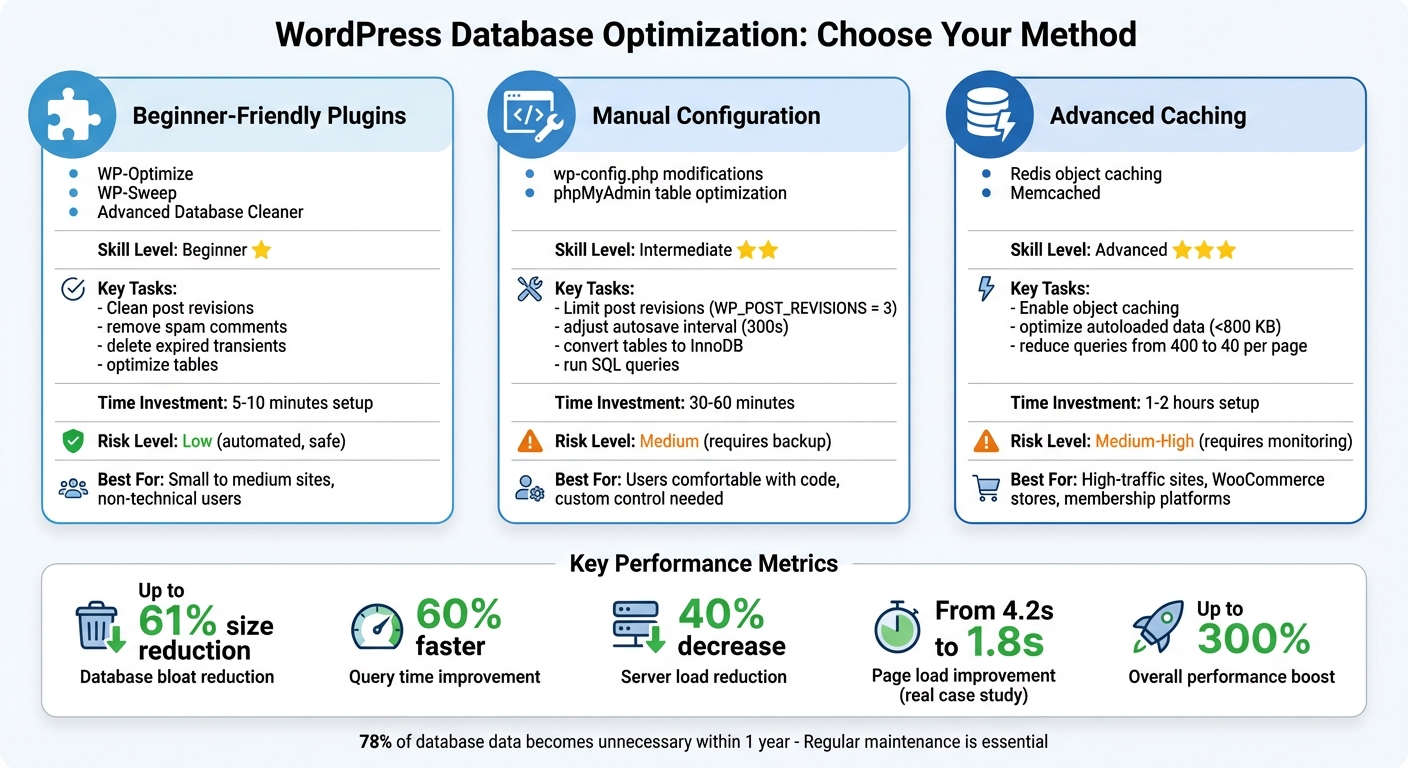
WordPress Database Optimization Methods Comparison Chart
Effective database optimization is not just a technical exercise – it’s an essential practice for ensuring your site’s long-term performance and reliability. Whether you’re a beginner or an advanced user, there are tools and techniques available to suit your skill level and needs.
Summary of Optimization Methods
This guide has covered a range of strategies, from beginner-friendly plugins like WP-Optimize and WP-Sweep, which handle tasks like cleaning post revisions and spam comments, to more advanced techniques such as converting tables to InnoDB and enabling Redis object caching. For those comfortable with manual adjustments, we explored cleaning orphaned metadata through phpMyAdmin, tweaking the wp-config.php file to limit revisions and automate trash deletion, and indexing frequently queried columns like wp_postmeta. Each method contributes to a more efficient and responsive database.
The choice of method depends on your technical expertise and the specific needs of your site. Plugins provide a safe and convenient option for beginners, while advanced users might prefer the precision of manual SQL queries. Configuration changes in wp-config.php help prevent future issues, and object caching minimizes direct database requests, further boosting performance.
Benefits of Regular Database Optimization
Regular database maintenance offers more than just performance gains – it strengthens your site’s stability and prepares it for future growth. A streamlined database improves speed, reduces server load, and enhances user experience. In fact, studies show that the average WordPress database accumulates up to 78% unnecessary data within a year, and proper optimization can cut query times by as much as 60% while reducing server load by 40%. These improvements lead to faster page loads, better search engine rankings, and a smoother admin dashboard.
Beyond speed, regular optimization helps prevent database crashes, reduces errors when saving posts, and avoids high CPU usage during traffic spikes. A clean, efficient database ensures your site can handle more content, users, and traffic without compromising performance. It’s a straightforward way to future-proof your site and deliver a better experience for your audience.
FAQs
How often should I optimize my WordPress database?
To ensure your WordPress site operates efficiently, make it a habit to optimize your database on a regular basis. If your site experiences heavy traffic, consider doing this every two weeks. For sites with lighter traffic, a monthly or bi-monthly schedule should work just fine. Regular database maintenance not only boosts your site’s performance but also minimizes unnecessary data and keeps your site running smoothly.
What happens if I don’t optimize my WordPress database regularly?
Neglecting to clean up your WordPress database can lead to database bloat, where unused or unnecessary data piles up over time. This buildup can drag down your website’s performance, causing slower page load times, increased strain on server resources, and an overall dip in efficiency.
A slow website isn’t just annoying for visitors – it can also hurt your SEO rankings and drive potential traffic away. By regularly optimizing your database, you can keep your site running smoothly, provide a better experience for users, and even save on hosting costs.
How do I find and delete unused data in my WordPress database?
Cleaning up unused data in your WordPress database is a smart way to boost your site’s performance. Start by identifying orphaned data – entries like leftover information from deleted posts, unused plugin tables, or old metadata that no longer ties to active content. If ignored, this clutter can slow your site down.
To make the process easier, consider using database cleanup plugins. These tools can scan your database for unnecessary entries and safely remove them with minimal effort. For those who feel confident handling things manually, phpMyAdmin is a great option. With it, you can directly inspect your database and delete items like old revisions, spam comments, or tables that aren’t linked to active posts, pages, or users.
One critical step: always back up your database first. This ensures you can recover your data if something goes wrong. Routine maintenance like this keeps your site running efficiently and hassle-free